How to Watch Show IPTV on Windows and Mac: A Complete PC Setup Guide
Want to take your entertainment to the big screen of your desktop? This guide explains exactly how to configure Show IPTV on Windows and Mac for the best experience.
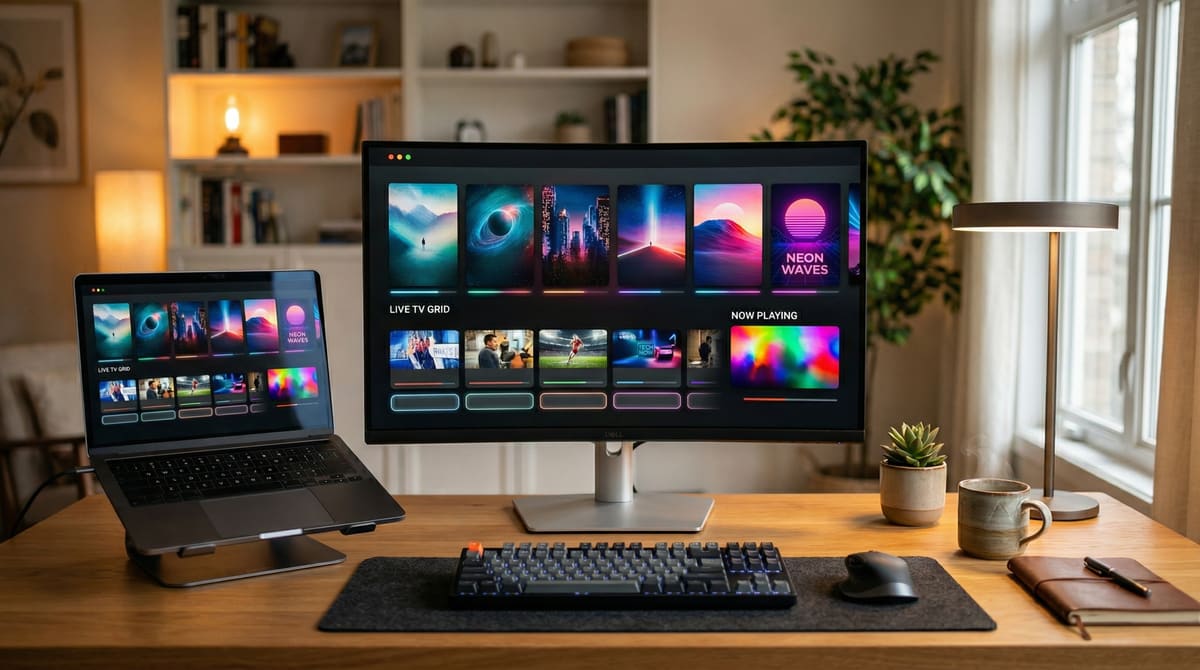
While many people enjoy streaming on their televisions, there is a significant advantage to setting up Show IPTV on a PC or laptop. Whether you are a student in a dorm, a professional who wants a second screen for news and sports, or someone who simply prefers the versatility of a computer, knowing how to properly configure your service is essential. Using a computer allows you to leverage powerful hardware to ensure show iptv hd quality remains consistent and sharp.
In this guide, we will walk you through the steps to get your service running on both Windows and macOS, ensuring you never miss a moment of your favorite content.
Why Stream on a PC?
The primary benefit of using a computer for your streaming needs is flexibility. Most modern PCs have displays that exceed the pixel density of standard budget televisions, meaning show iptv movies look incredibly crisp. Furthermore, PCs offer more robust multitasking capabilities. You can have your stream running in one window while browsing the web or working in another.
Before you start the installation, it is helpful to check the devices page to ensure your current hardware meets the recommended specifications for high-definition playback. Generally, any computer made in the last five years will handle show iptv hd content without any lag.
Setting Up on Windows
For Windows users, the most common way to enjoy Show IPTV is through dedicated IPTV players available in the Microsoft Store or via third-party software like VLC Media Player or IPTV Smarters.
Select Your Player: Download a reputable IPTV player from the Windows Store.
Enter Your Credentials: You will typically need your M3U URL or Xtreme Codes API details provided in your subscription email.
Configure Video Settings: To get the most out of your movie show iptv experience, go into the app settings and ensure "Hardware Acceleration" is enabled. This offloads the video processing to your GPU, resulting in smoother playback.
Load the EPG: Ensure your Electronic Program Guide is synced so you can see the full schedule of live events.
Setting Up on Mac
Mac users have equally powerful options. While the ecosystem is more closed, apps like IINA or specialized IPTV clients for macOS provide a premium viewing experience.
Download a Compatible Media Player: Apps specifically designed for macOS offer the best integration with Retina displays.
Input Connection Details: Copy and paste your playlist links into the player.
Optimize for Full Screen: Use the native macOS full-screen mode to eliminate distractions while watching show iptv movies.
Maximizing Performance and Quality
One common concern for desktop users is ensuring the stream doesn't stutter. Even with a powerful computer, network stability is key. If you experience issues, you should refer to our guide on how to How to Fix Buffering and Improve Streaming Quality on Show IPTV. Often, switching from a Wi-Fi connection to an Ethernet cable can make a massive difference in maintaining a steady show iptv hd feed.
Additionally, understanding the full scope of what your subscription offers is important. Beyond just live channels, the Show IPTV: HD Live TV, Movies and Sports Guide provides insights into the diverse range of content available to you, from international news to the latest cinema releases.
Hardware vs. Software Decoding
When setting up your PC, you might see options for "Software" or "Hardware" decoding. Always choose hardware decoding if your graphics card supports it. This ensures that the Show HD IPTV: Features, Streaming Quality and Device Support operate at their peak, providing 60fps fluidity for sports and high-bitrate clarity for films.
Final Thoughts
Streaming Show IPTV on a computer is a game-changer for those who value convenience and high-resolution visuals. By following this setup guide, you can transform your workstation into a high-end entertainment hub. Ready to get started with a premium plan? Visit our homepage to explore our current offers and join the thousands of users enjoying world-class streaming today.